Guides · 5 min guide
Back up your iPhone to iCloud
A backup saves your apps, settings and messages so you can put them back after a repair, a reset or on a new phone.
5 min · iPhone
Before you start
- Connect to Wi‑Fi.
- Plug in if the battery is low.
- Check you have enough iCloud storage.
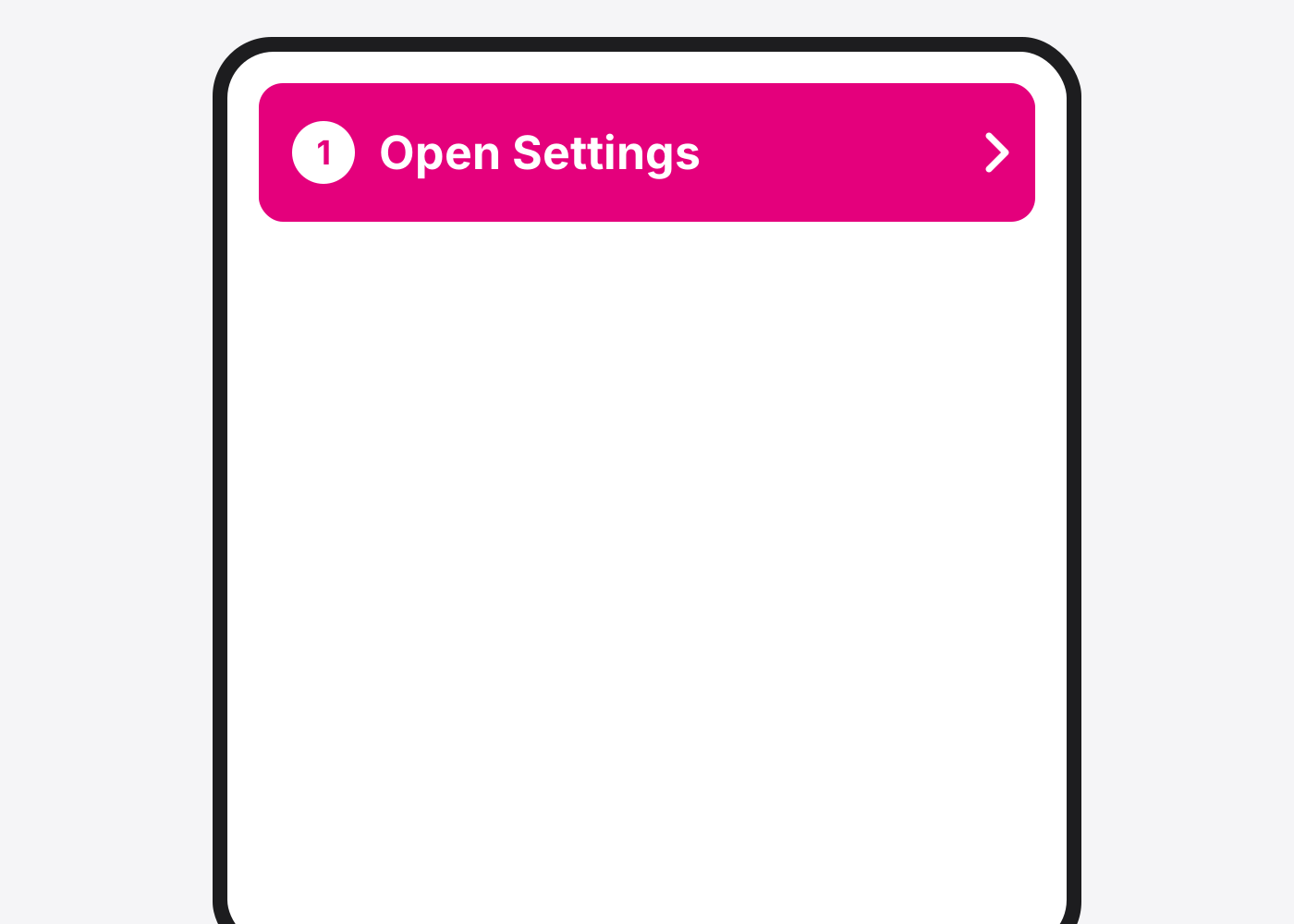
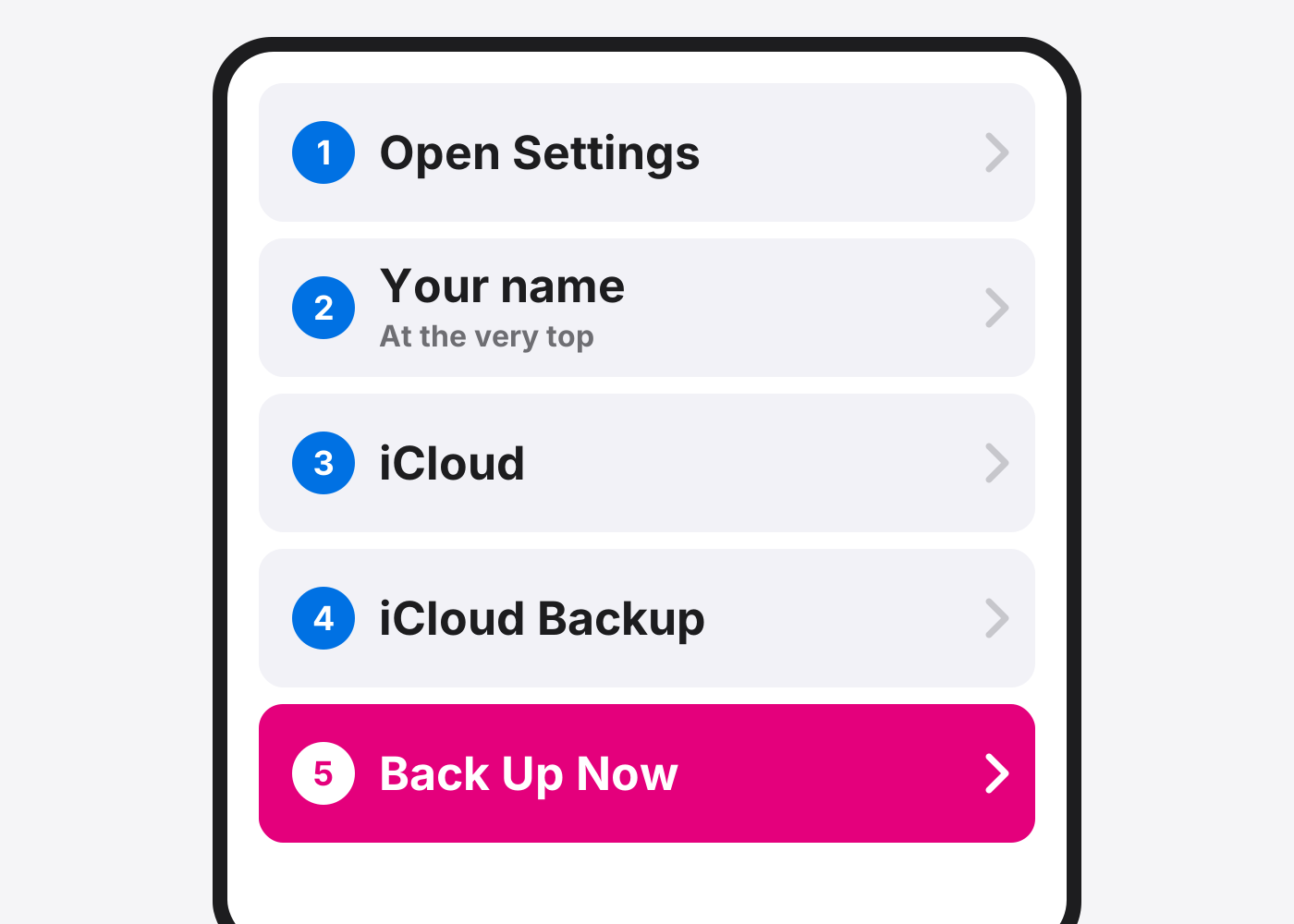
- Open Settings.
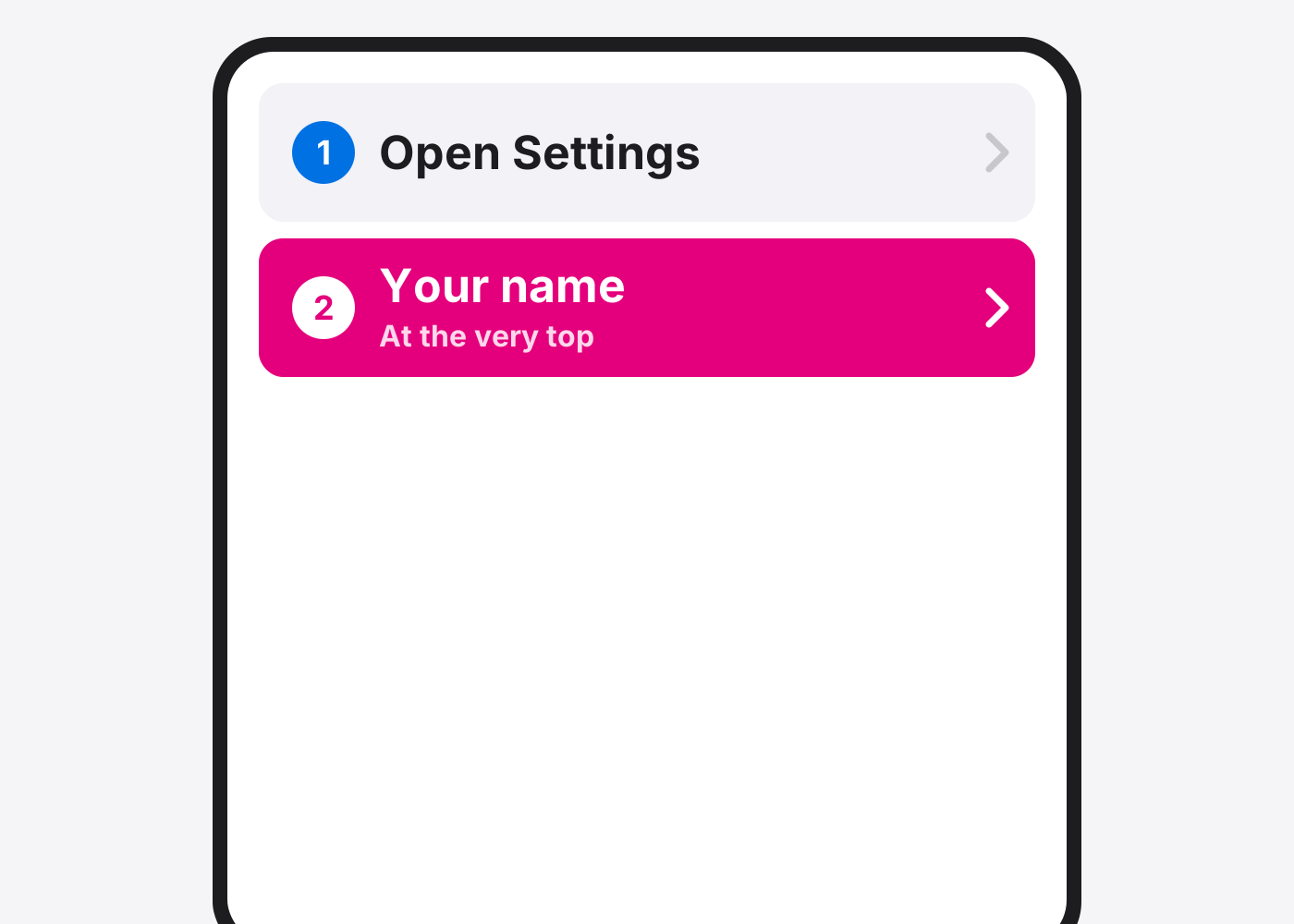
- Tap your name. It’s at the very top.
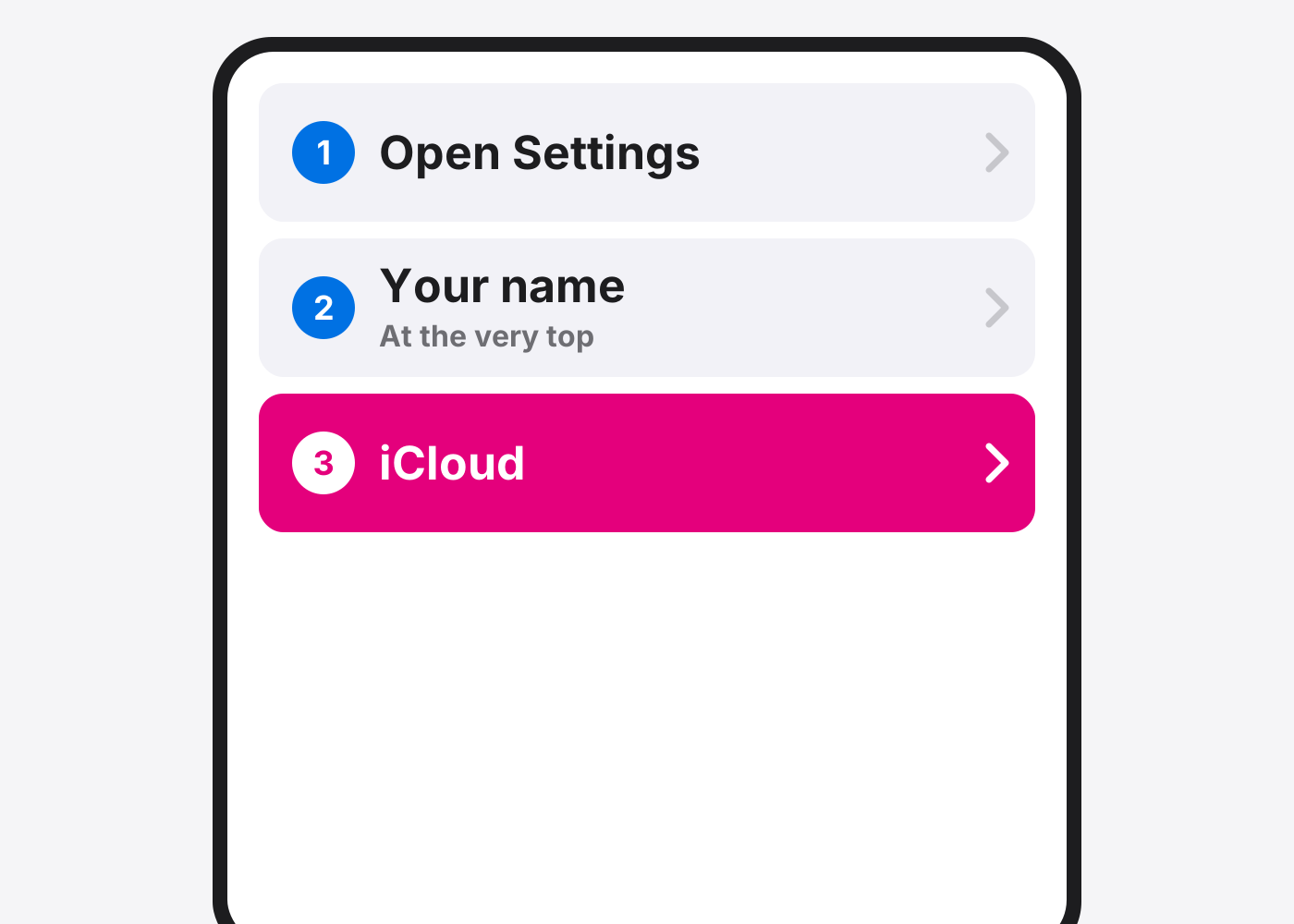
- Tap iCloud.
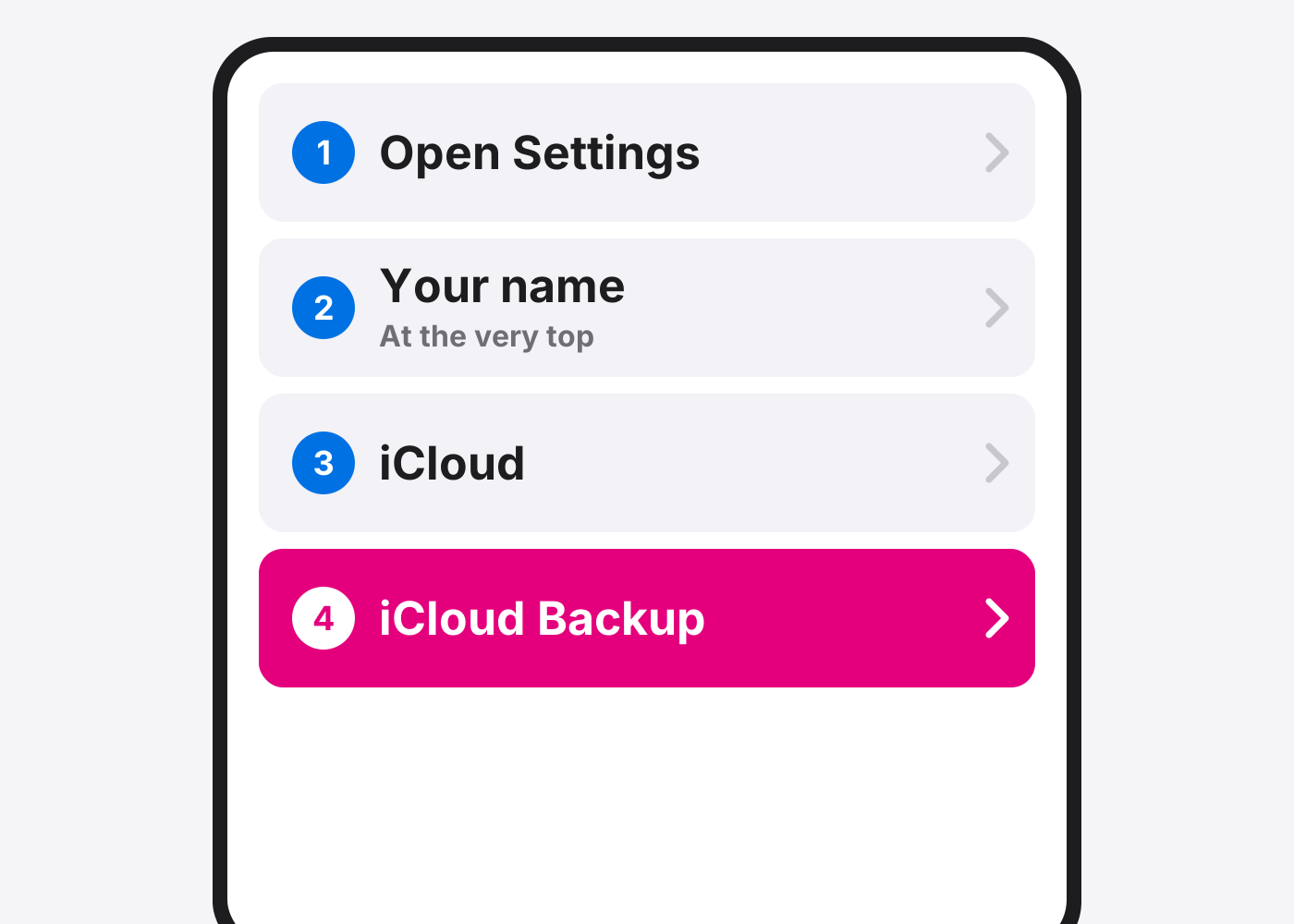
- Tap iCloud Backup.
- Tap Back Up Now. Stay on Wi‑Fi until it finishes.
- Check it worked. Under Back Up Now you’ll see the date and time of your last backup.
- Turn on automatic backups (optional). Switch on Back Up This iPhone. It backs up by itself when it’s plugged in, on Wi‑Fi and locked.
If it doesn’t work
Not enough iCloud storage
Your iPhone will offer more storage. Or back up to a computer with Finder or the Apple Devices app.
Where are my photos?
If iCloud Photos is on, your photos are already stored in iCloud and aren’t part of the backup.
Based on the official steps: Apple: Back up your iPhone with iCloud
Need it fixed?
Most screen, battery and charging port repairs are done while you wait, with a warranty.