Guides · 1 min guide
Force restart a frozen iPhone
Use this when the screen is frozen or black and the iPhone won’t respond. Nothing gets erased.
1 min · iPhone
Before you start
- Find your model: no Home button means iPhone X or newer. A Home button means iPhone 8, SE or older.
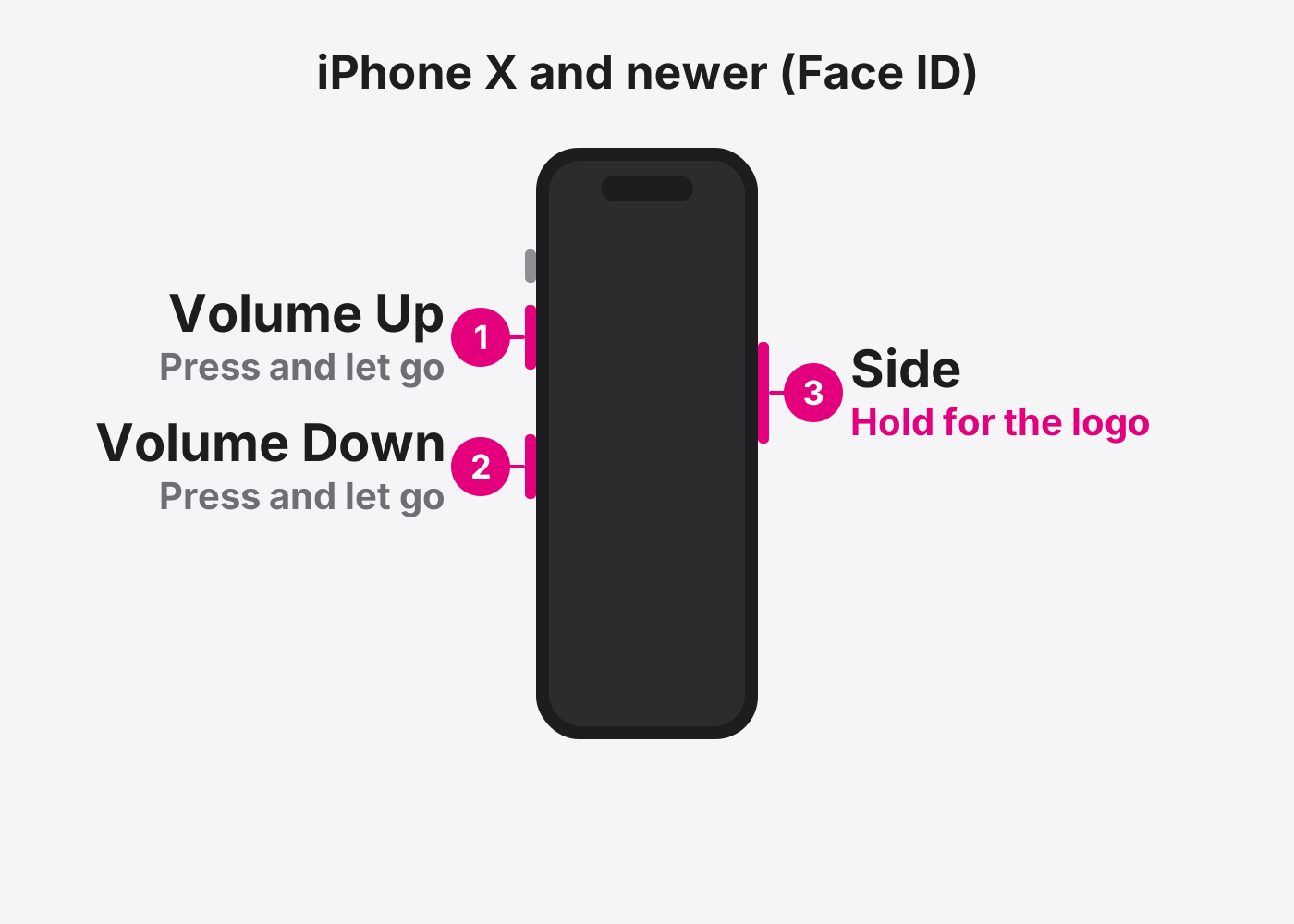
- iPhone X and newer (Face ID). Press and quickly let go of Volume Up. Press and quickly let go of Volume Down. Then hold the Side button until the Apple logo shows. This can take more than 10 seconds.
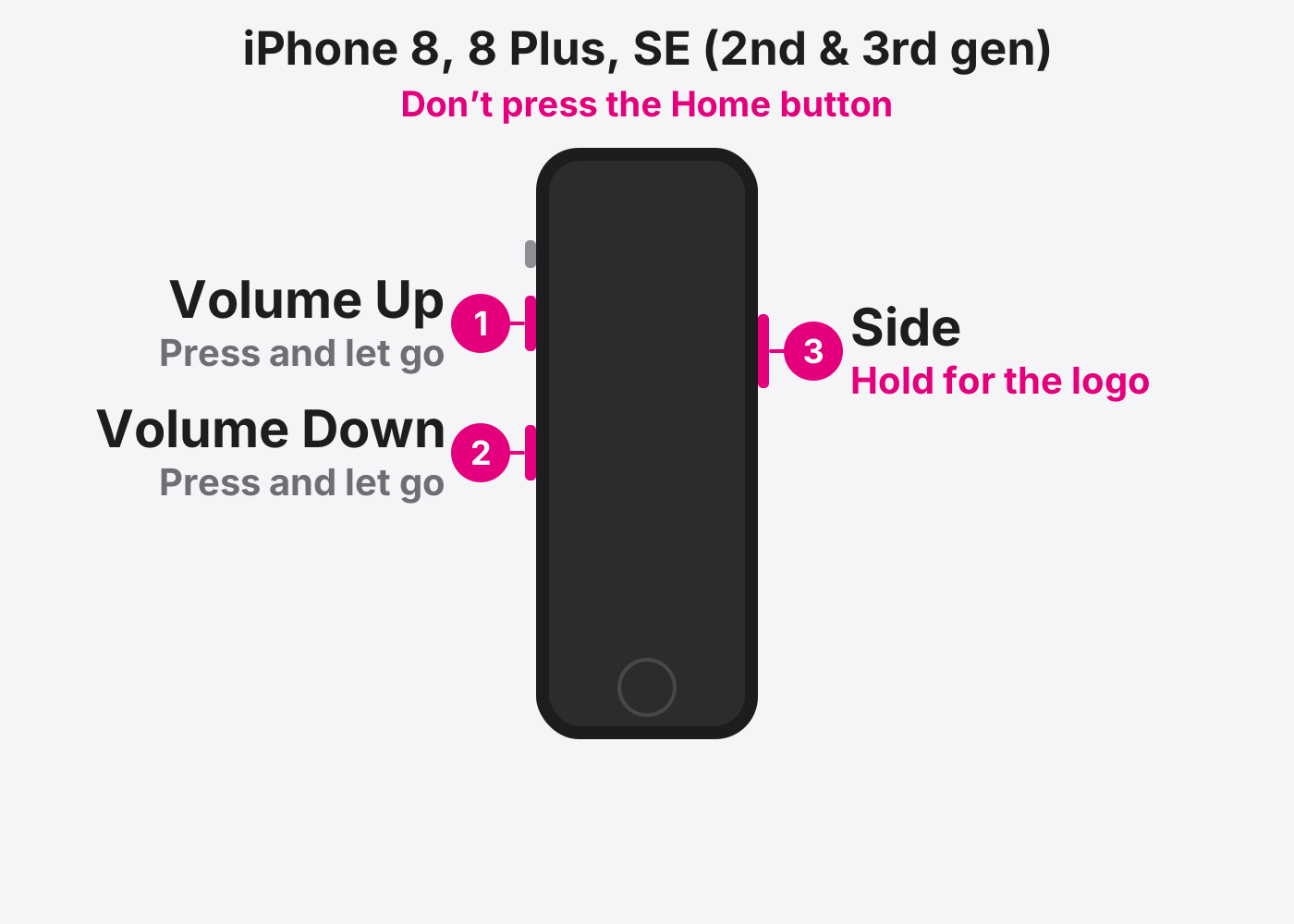
- iPhone 8, 8 Plus and SE (2nd and 3rd gen). Same steps. Don’t use the Home button: Volume Up, Volume Down, then hold the Side button until the Apple logo shows.
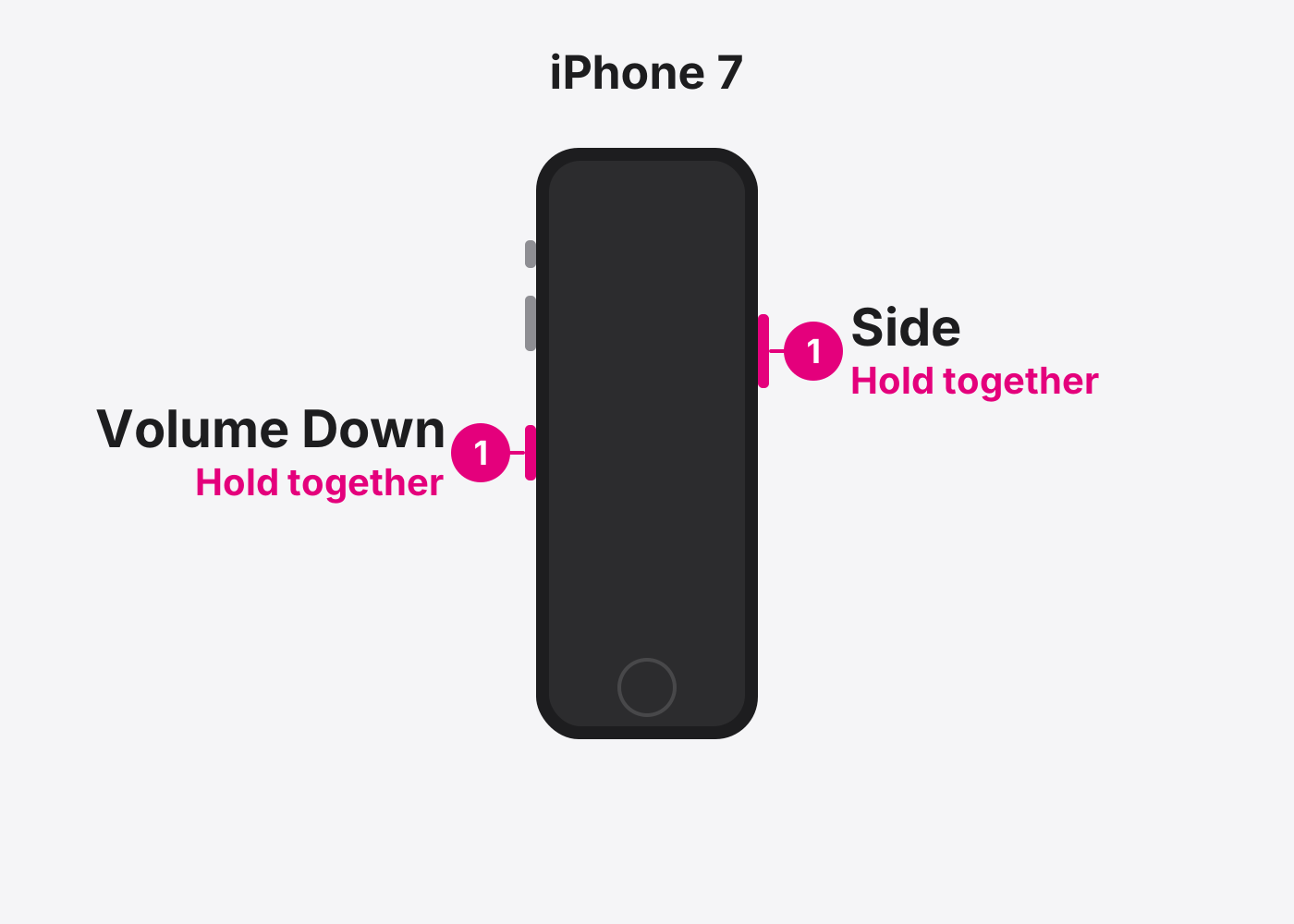
- iPhone 7 and 7 Plus. Hold the Side and Volume Down buttons together until the Apple logo shows.
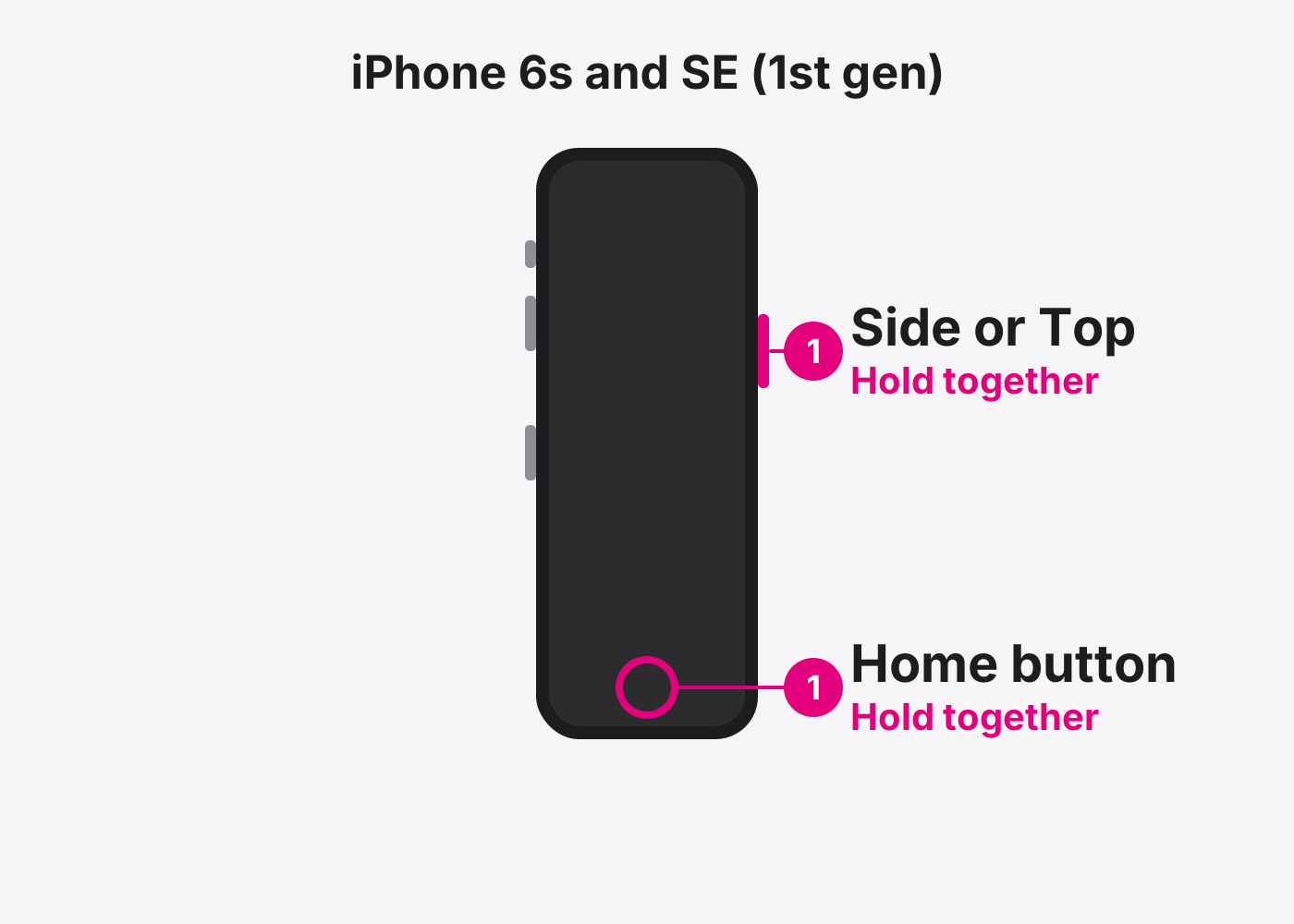
- iPhone 6s and SE (1st gen). Hold the Home button and the Side (or Top) button together until the Apple logo shows.
If it doesn’t work
Nothing happens
Charge it for an hour, then try again. Still nothing? It may need a battery or charging port repair.
It restarts but gets stuck on the Apple logo
Follow the Reset an iPhone with a computer guide and choose Update. That keeps your data.
Based on the official steps: Apple: Restart an unresponsive iPhone
Need it fixed?
Most screen, battery and charging port repairs are done while you wait, with a warranty.