Guides · 30–60 min guide
Reset an iPhone with a computer
Recovery mode lets a computer reinstall iOS. Use it when your iPhone won’t start, is stuck on the Apple logo, or you can’t get into Settings.
30–60 min · iPhone
Before you start
- A Mac (Finder) or a Windows PC with the Apple Devices app, updated to the latest version.
- A USB cable that works with your iPhone.
- Internet on the computer and up to an hour.
- Restore erases the iPhone. Update tries to keep your data.
- Plug the iPhone into the computer. Use the USB cable. Keep it plugged in the whole time.
- Open Finder or Apple Devices. Mac: open a Finder window. Windows: open the Apple Devices app.
- Press and quickly let go of Volume Up. For iPhone 8 and newer, including SE (2nd and 3rd gen).
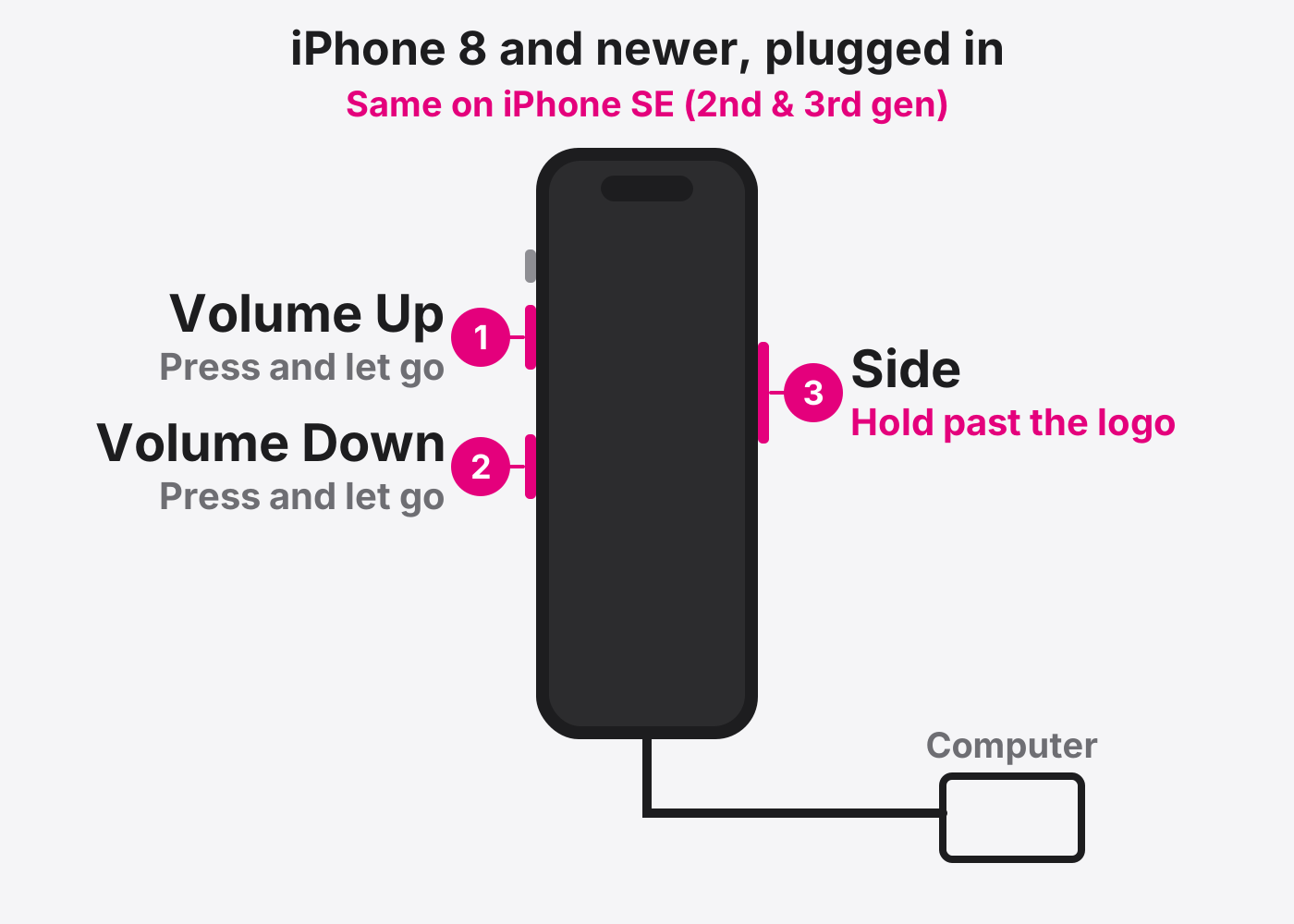
- Press and quickly let go of Volume Down.
- Press and hold the Side button. Keep holding past the Apple logo. Let go when you see a computer and cable on the screen.
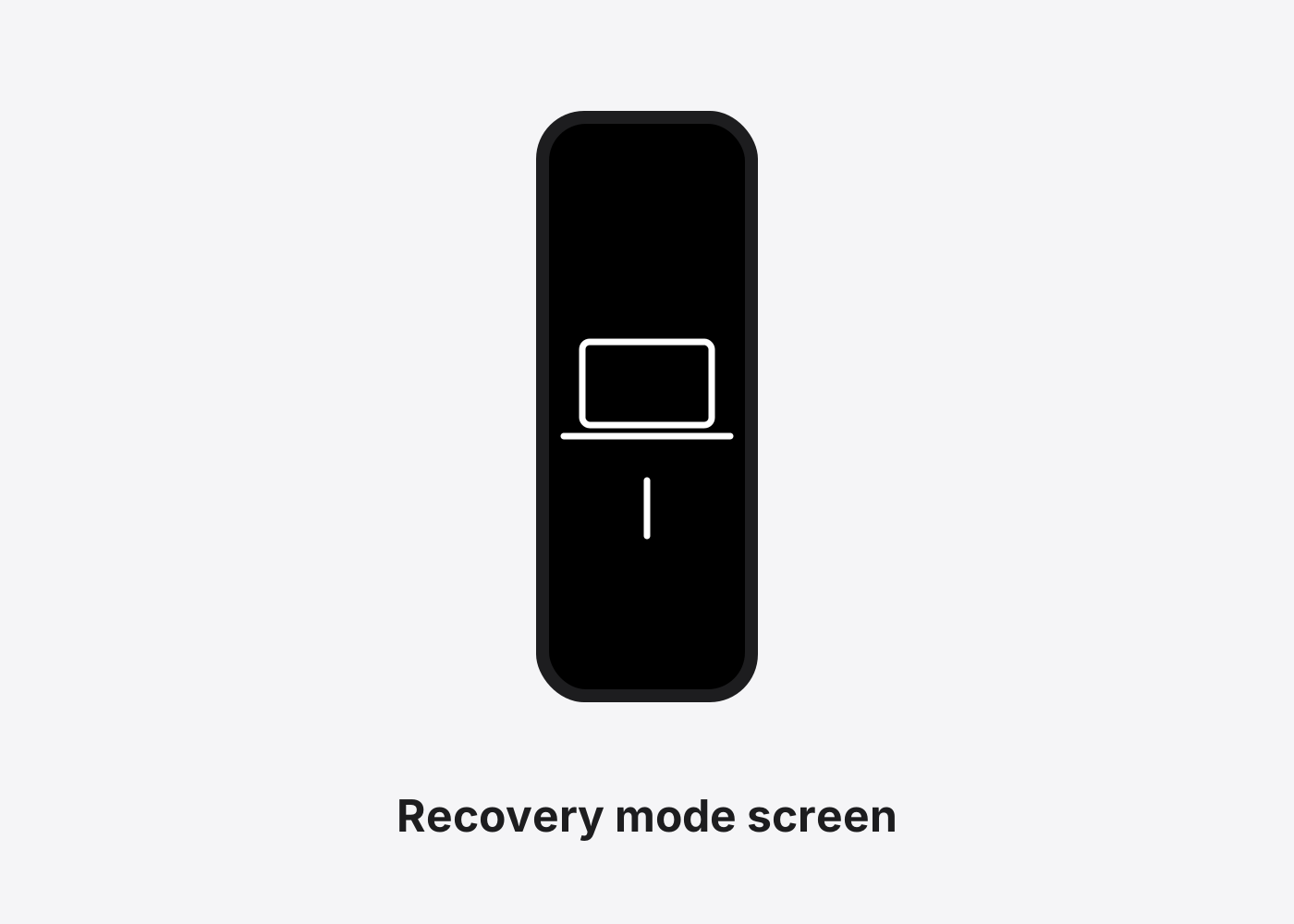
- Older iPhone? Use these buttons. iPhone 7: hold Side and Volume Down together. iPhone 6s or SE (1st gen): hold Home and Side (or Top) together. Hold until you see the computer and cable.
- Choose Update or Restore. The computer asks. Try Update first to keep your data. Choose Restore to erase it.
- Wait for it to finish. If it takes more than 15 minutes, the iPhone leaves recovery mode. Let the download finish, turn the iPhone off, and do the button steps again.
- Set up your iPhone. When it restarts, set it up as new or restore from a backup.
If it doesn’t work
I can’t get to the computer and cable screen
A button may be broken or sticking. That needs a repair. Bring it in.
The computer doesn’t see the iPhone
Try another cable or USB port, and update your Mac or the Apple Devices app.
It asks for an Apple Account after restoring
That’s Activation Lock. Sign in with the Apple Account that was on the phone.
Based on the official steps: Apple: If you can’t update or restore your iPhone
Need it fixed?
Most screen, battery and charging port repairs are done while you wait, with a warranty.